
Unleash Full-Speed WiFi: Complete Setup & Optimization Guide for Range Extender EAX14
Posted by WifiExtSetup on 13th June 2025
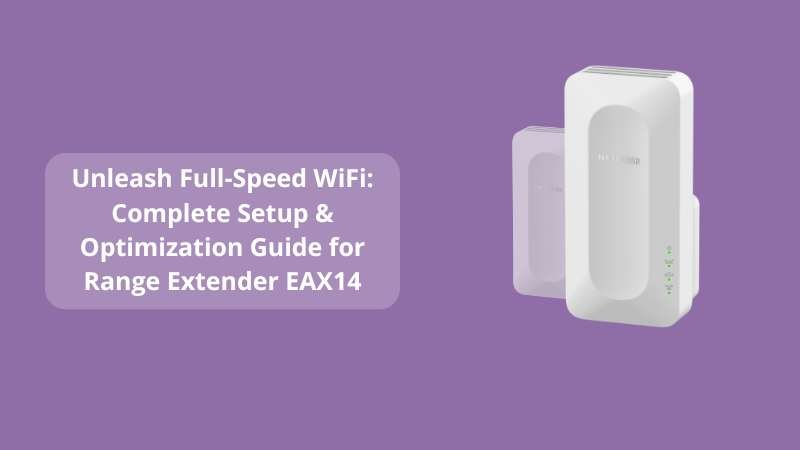
Are you tired of slow internet speeds in certain rooms? Do you constantly switch between networks or struggle with buffering during video calls? You’re not alone. Most routers have their limits, and that’s where a range extender like the Netgear EAX14 becomes your digital best friend.
But how exactly do you set it up? What if you want the best possible performance from your extender? In this blog, we’ll break down everything you need to know to set up and optimize the Range Extender EAX14—no jargon, no guesswork.
Let’s get your WiFi flowing like water through every wall.
Why Choose the Netgear EAX14?
The Netgear EAX14 is more than just a basic signal booster—it’s a smart WiFi 6 range extender. Here’s why it stands out:
-
WiFi 6 technology for faster speeds and better performance across multiple devices
-
Speeds up to 1.6Gbps, making it ideal for HD streaming and gaming
-
Mesh compatibility—it blends seamlessly with your existing router to form a unified network
-
Compact design with easy plug-in capability
-
Dual-band (2.4GHz + 5GHz) support ensures better traffic management
Whether you’re a gamer, a remote worker, or a parent dealing with kids hogging the bandwidth, the EAX14 ensures everyone stays connected—smoothly.
How to Set Up Range Extender EAX14 (WPS Method)
Looking for the quickest way to get started? The WPS (Wi-Fi Protected Setup) method is your go-to.
Step-by-Step WPS Setup
-
Plug it in
Insert the EAX14 into a power outlet near your router. Wait until the Power LED is solid. -
Press the WPS Button on Your Router
Locate and press the WPS button. Some routers might have it labeled as “WPS” or have a two-arrow symbol. -
Press the WPS Button on EAX14
Within 2 minutes of the first step, press the WPS button on your extender. -
Connection Complete
When the Router Link LED turns solid, your EAX14 is connected. -
Relocate for Best Coverage
Move the extender midway between your router and the area with a weak signal. Avoid corners, thick walls, or microwaves.
“WPS setup is like WiFi speed dating—two devices meet, pair, and boost each other’s strengths.”
Manual Setup Using a Web Browser
Prefer full control or your router doesn’t support WPS? No problem. The manual setup is just as simple.
Step-by-Step Manual Setup
-
Connect to EAX14
Go to your WiFi settings and connect to the extender’s default network:NETGEAR_EXT. -
Access the Setup Page
Open a browser and go towww.mywifiext.net. You’ll be redirected to the Netgear Genie setup wizard. -
Choose Setup Mode
Select “WiFi Range Extender” setup and follow the on-screen instructions. -
Select Your WiFi Network
Choose your existing WiFi network and enter its password. -
Customize Your Extended Network
You can keep the extended SSID with_EXTor name it something else. -
Reconnect Devices
Connect your devices to the new extended network. Done!
Optimization Tips for Faster WiFi
Now that you’re connected, let’s get that extender running at full power.
Placement Tips
-
Midway is Magic: Too close to the router = redundant. Too far = weak signal.
-
Avoid Interference: Stay away from metal, concrete, and electronics like TVs or fridges.
-
Go High: Mount it higher on the wall for better signal distribution.
Enable Mesh Roaming
If you have a Netgear router that supports Mesh, you can sync the SSID and passwords so your devices switch seamlessly between router and extender.
Update Firmware
Regularly visit mywifiext.net and check for firmware updates. Netgear often releases updates that enhance speed and compatibility.
Troubleshooting Common Issues
Problem: Can’t connect to mywifiext.net
Fix: Try using 192.168.1.250. Also, ensure you’re connected to the extender’s default Wi-Fi.
Problem: Weak signal from extender
Fix: Try relocating it closer to the router. Use the LED color indicator as your guide—green is ideal.
Problem: WPS didn’t work
Fix: Try manual setup, and make sure both devices support WPS.
Want More?
Check out this internal blog:
🔗 Revamp Your Connectivity: WN3500RP Setup Guide
Explore expert guides and easy solutions for other models too at:
🌐 https://www.wifi-extsetup.com
Conclusion: Is the EAX14 Worth It?
If you’re done tolerating slow speeds, dropped calls, and spinning loading wheels, then yes—the Netgear EAX14 is 100% worth it. It’s easy to set up, powerful, and built for the next generation of WiFi.
“Strong connections create strong experiences. The EAX14 helps you stay online—wherever you are at home.”
From setup to streaming, gaming, or remote working, the EAX14 gives you the freedom to roam without losing connection. And if you ever feel stuck, you can always turn to Netgear’s support or use our detailed blog guides.
FAQs About Netgear EAX14 Setup
Q1. Can I use EAX14 with any router?
Yes! It’s universally compatible, even with older WiFi 4/5 routers.
Q2. What’s the difference between a range extender and a mesh extender?
Mesh extenders like the EAX14 create one seamless network with your router, while traditional extenders use a separate SSID.
Q3. How do I reset the EAX14?
Press and hold the Reset button for 10 seconds until the LEDs blink.
Q4. Does the EAX14 support Ethernet connections?
Yes, it includes a LAN port to hardwire devices like smart TVs, consoles, or desktops.
Q5. How many devices can I connect to it?
It supports up to 30+ devices, thanks to its WiFi 6 technology.