
Netgear Range Extender EX6100: Setup, Features & Expert Tips for Seamless WiFi
Posted by WifiExtSetup on 19th August 2025
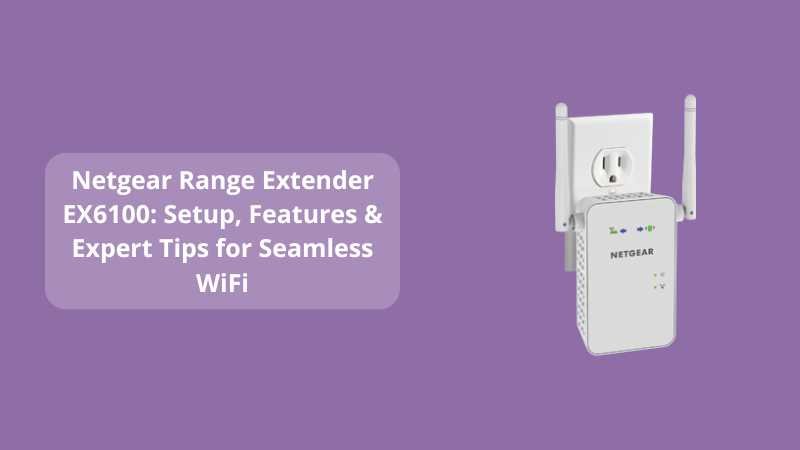
Have you ever been in the middle of an important Zoom call only to lose connection because your WiFi dropped? Or maybe you’ve tried streaming your favorite show and the buffering symbol feels like it’s mocking you? In today’s hyper-connected world, weak signals and dead zones are more than just an inconvenience—they’re deal breakers. So, what’s the solution? That’s where the Netgear Range Extender EX6100 steps in as your WiFi lifesaver.
But the real question is: how do you set it up effectively, and is it worth the investment? Let’s dive deep.
What Makes the Netgear EX6100 Stand Out?
Think of your WiFi router as a lighthouse. It shines bright, but its reach is limited. Now imagine the EX6100 as a mirror, reflecting that light further into every dark corner of your home.
The Netgear EX6100 is a dual-band WiFi range extender designed to eliminate dead zones and strengthen your existing WiFi coverage. Here’s what makes it popular:
-
Dual-Band Performance: Operates on both 2.4GHz and 5GHz for smoother streaming and gaming.
-
Speeds Up to 750Mbps: Enough to handle multiple devices without breaking a sweat.
-
Compact Design: Easily plugs into a wall outlet—no bulky hardware.
-
FastLane Technology: Combines both WiFi bands for maximum speed.
-
Compatibility: Works with any standard WiFi router.
As Netgear says, “It’s not just about extending WiFi—it’s about extending possibilities.”
Step-by-Step Setup Guide for Netgear EX6100
Setting up a WiFi extender sounds intimidating, right? Wrong. The EX6100 makes it simple, and you don’t need to be a tech genius. Let’s break it down.
1. Plug It In and Power On
-
Choose a midway spot between your router and the dead zone.
-
Plug in the EX6100 and wait for the Power LED to turn solid green.
2. Connect to the Extender’s Network
-
On your phone or laptop, open WiFi settings.
-
Look for NETGEAR_EXT and connect.
3. Access Setup Wizard
-
Open a browser and type www.mywifiext.net or 192.168.1.250.
-
You’ll be redirected to the Netgear Genie Setup Wizard.
4. Select Your Router’s Network
-
Choose your existing WiFi and enter the password.
-
Assign a name (SSID) for the extended network.
5. Confirm and Connect
-
Restart your devices and connect to the new extended WiFi.
💡 Pro Tip: For a more stable connection, use the Ethernet port on the EX6100 to directly connect devices, such as gaming consoles or smart TVs.
Why Should You Use the Netgear EX6100?
You might ask: “Can’t I just buy a new router?” Yes, but why spend extra when you can extend the life of your current one?
Here’s why the EX6100 is a smart investment:
-
Cost-Effective: Affordable compared to high-end routers.
-
Flexible Placement: Can be moved anywhere in your home.
-
Improves Productivity: No more interruptions while working from home.
-
Supports Multiple Devices: From smartphones to smart home gadgets.
It’s like adding an extra room to your house without moving walls—simple yet effective.
Troubleshooting Tips for EX6100
Even the best devices sometimes encounter issues. Here are quick fixes:
-
Problem: Can’t access mywifiext.net?
→ Use the IP address 192.168.1.250 instead. -
Problem: Extender keeps disconnecting.
→ Reposition closer to your router. Check for interference from microwaves or cordless phones. -
Problem: Slow speed even after setup.
→ Enable FastLane Mode for maximum performance.
Related Blog You Should Check Out
Looking for another range extender setup? Don’t miss our detailed guide:
👉 Netgear Range Extender AC1750: The Ultimate WiFi Booster for Your Home and Office
Conclusion: Is Netgear EX6100 Worth It?
So, back to our opening questions—can the EX6100 end buffering frustrations, video call drops, and dead zones? The answer is a resounding YES.
It’s not just an extender; it’s a productivity booster, a peace-of-mind creator, and in many cases, the hero of your digital life. For those looking to set up WiFi without stress, the EX6100 is a perfect blend of affordability, efficiency, and simplicity.
As Netgear reminds us: “Your WiFi should never hold you back—it should push you forward.”
👉 Ready to give your home seamless connectivity? Explore the setup guide at WiFi ExtSetup and experience the difference today.
Frequently Asked Questions (FAQs)
Q1. Can the Netgear EX6100 work with any router?
Yes, it’s compatible with all standard WiFi routers and even ISP-provided modems.
Q2. What’s the maximum speed I can expect?
It supports speeds up to 750Mbps across dual bands, ideal for HD streaming and online gaming.
Q3. How do I reset the EX6100?
Press and hold the Reset button for 10 seconds until the power light blinks.
Q4. Does it support Ethernet connections?
Yes, the EX6100 has a Gigabit Ethernet port for wired devices.
Q5. Where should I place my extender?
Place it midway between your router and the dead zone for best coverage.