
How to Set Up Netgear Range Extender AC EX6200v2: A Complete Step-by-Step Guide
Posted by WifiExtSetup on 06th May 2025
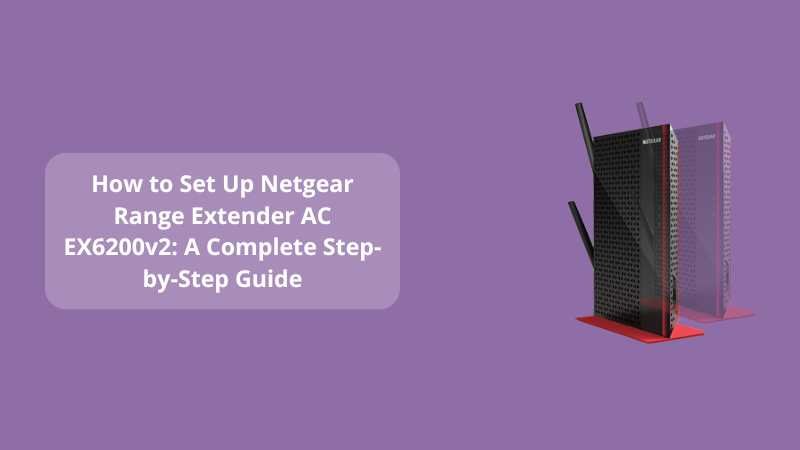
Easily Set Up Your Netgear Range Extender AC EX6200v2
Struggling with slow internet in certain corners of your home or office? The Netgear AC EX6200v2 Range Extender is built to eliminate Wi-Fi dead zones and extend your existing network coverage. But how exactly do you set it up?
In this blog, we’ll walk you through two easy methods to set up your EX6200v2: using WPS and a Web Browser (Manual Setup). Whether you’re tech-savvy or a beginner, this setup guide will run your extender in minutes.
Method 1: WPS Setup (Wi-Fi Protected Setup) – Easiest Way
WPS allows you to connect your extender to your router without needing to enter a Wi-Fi password. It’s fast and simple.
Follow these steps:
-
Plug in your EX6200v2 near your existing Wi-Fi router.
-
Wait for the Power LED to turn solid green.
-
Press the WPS button on your router.
-
Within 2 minutes, press the WPS button on your EX6200v2.
-
The Link LED on the extender will light up solid green, indicating a successful connection.
-
Repeat the steps for the 5 GHz band if your router supports dual-band.
-
Once connected, relocate the extender to a central location between the router and your dead zone.
Tip: A solid green LED on your extender means the location is ideal for strong connectivity.
Method 2: Manual Setup via Web Browser
Don’t have a WPS button on your router? No problem. You can manually connect using a browser.
Here’s how to do it:
-
Plug in the EX6200v2 and wait for the power LED to turn solid green.
-
On your smartphone or PC, go to Wi-Fi settings and connect to NETGEAR_EXT.
-
Open any web browser and type www.mywifiext.net into the address bar.
-
The Netgear setup wizard will launch automatically.
-
Select your existing Wi-Fi network from the list.
-
Enter your router’s Wi-Fi password when prompted.
-
Choose to keep your extender’s network name the same or create a new SSID.
-
Click Next and wait for the extender to apply the settings.
-
Once successful, you’ll see a confirmation message.
Tip: After setup, you can unplug and move the extender to a better spot with a strong signal—use the signal strength LED as a guide.
How to Verify Successful Setup
-
Connect a device (phone, laptop) to your new extended network.
-
Test internet speed and connection strength.
-
If your device has internet access, you’re good to go!
Still Facing Issues? Try This:
-
Reset the extender by holding the Reset button for 10 seconds.
-
Make sure you’re close enough to the router during setup.
-
Use 192.168.1.250 in your browser if mywifiext.net doesn’t load.
Conclusion
Setting up your Netgear Range Extender AC EX6200v2 is simple, whether you go with WPS or manual setup. In just a few steps, you can enjoy faster, wider, and more reliable internet access across your entire space.
Need more help or troubleshooting tips? Visit the full blog guide here:
👉 Range Extender AC EX6250v2: The Ultimate Fix for Wi-Fi Dead Zones
FAQs – Netgear AC EX6200v2 Setup
Q1. What is the default login URL for the Netgear EX6200v2 setup?
A: The default login URL is http://www.mywifiext.net or http://192.168.1.250. Make sure your device is connected to the extender’s network before accessing it.
Q2. What if I can’t access mywifiext.net during setup?
A: Ensure you’re connected to the NETGEAR_EXT network. Try using http://192.168.1.250 or clear your browser cache. If the issue persists, restart the extender and try again.
Q3. Can I set up the EX6200v2 without WPS?
A: Yes! You can use the manual browser setup method by connecting to the extender’s network and visiting http://mywifiext.net.
Q4. How do I reset my Netgear EX6200v2 to factory settings?
A: Locate the Reset button (a small pinhole) on the device. Press and hold it for 10 seconds using a paperclip or pin until the LEDs blink. This will restore default settings.
Q5. Where should I place my range extender for best performance?
A: Ideally, place it midway between your router and the Wi-Fi dead zone. Use the signal strength LED on the extender to find the optimal location.
Q6. Does the EX6200v2 support dual-band Wi-Fi?
A: Yes, it supports both 2.4GHz and 5GHz bands, allowing faster speeds and better performance for streaming and gaming.
Q7. Can I use the EX6200v2 with any router?
A: Yes, the Netgear EX6200v2 is compatible with almost all standard Wi-Fi routers.