
Supercharge Your Home WiFi: The Expert Setup Guide for Range Extender EX3700
Posted by WifiExtSetup on 05th July 2025
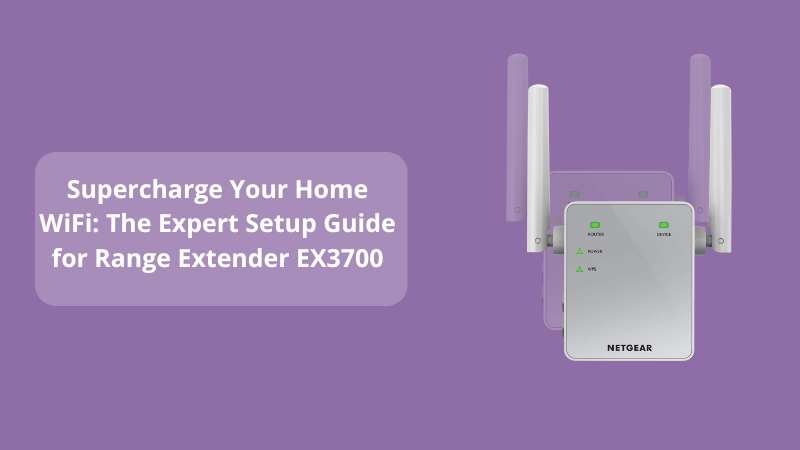
How to Set Up and Maximize Your Range Extender EX3700 for Blazing-Fast Connectivity
Is your WiFi letting you down in the places you need it most?
Do you often face signal drops in corners of your home or slow buffering during your favorite streaming sessions? If that sounds familiar, you’re not alone. In a world where every device in the house relies on the internet—from smart TVs to video doorbells—you simply can’t afford to have dead zones. That’s where the Range Extender EX3700 becomes your WiFi superhero.
In this article, we’ll explore how you can easily set up and optimize your EX3700 extender for top performance. Whether you’re tech-savvy or a complete beginner, we’ve got you covered.
What is the Range Extender EX3700 and Why You Need It?
The Netgear EX3700 is a dual-band WiFi range extender that supports speeds up to 750Mbps. It’s designed to eliminate dead zones and extend the coverage of your existing WiFi network. Compact and powerful, it plugs into any wall outlet and works with virtually any standard router.
Key Benefits:
-
Eliminates weak signals in hard-to-reach areas
-
Supports HD streaming and gaming
-
Provides dual-band performance (2.4GHz + 5GHz)
-
Comes with FastLane technology for better speed
-
Features an Ethernet port for wired connections
“WiFi is not a luxury anymore—it’s a lifeline.”
Step-by-Step Setup Guide for EX3700
Let’s dive into the easiest and most effective way to set up your EX3700 WiFi range extender.
1. Plug It In
Start by plugging your extender into a power outlet halfway between your router and the area with weak signal. Wait for the Power LED to turn solid green.
2. Connect Using WPS (Recommended Method)
-
Press the WPS button on your router.
-
Within 2 minutes, press the WPS button on the EX3700.
-
Once the Device Link LED turns solid, the connection is successful.
-
Repeat for the 5GHz band if needed.
“If your router supports WPS, this method is a game-changer. No technical jargon, just quick setup.”
3. Connect Manually via Web Browser (Alternative)
-
Connect to the extender’s WiFi network (NETGEAR_EXT).
-
Open a browser and visit: https://www.mywifiext.net
-
Follow the on-screen instructions to connect it to your existing WiFi.
4. Reposition the Extender
Move the EX3700 to an ideal location (still within the range of your router), ensuring both router and device LEDs are green for stable performance.
5. Connect Your Devices
Start connecting smartphones, laptops, smart TVs, and more to the newly extended network. You can use the same WiFi password as your router.
Optimization Tips for Better Performance
Setting it up is only the beginning. Here are some powerful tweaks to get the most out of your EX3700:
A. Firmware Update
Always update your extender’s firmware via the Netgear web interface to fix bugs and enhance performance.
B. Use the FastLane Technology
Enable FastLane to dedicate one band for communicating with the router and the other with your devices. Great for gaming and streaming!
C. Avoid Obstacles
Keep it away from:
-
Microwaves
-
Metal appliances
-
Thick walls or mirrors
D. Secure Your Network
Use WPA2 encryption and change your admin password to keep unwanted guests off your extended network.
Troubleshooting Common Issues
Here are a few quick fixes if something doesn’t go right:
-
Can’t connect to extender WiFi? Try rebooting both the extender and your router.
-
Slow speed? Check the distance from the router or switch to FastLane.
-
Mywifiext.net not loading? Make sure you’re connected to the extender’s network.
Why the EX3700 is Still a Powerful Choice
Even though newer extenders exist, the EX3700 is still a reliable and affordable option. It combines decent speed, strong signal range, and a simple setup process. For small to medium-sized homes, it’s a solid pick without breaking the bank.
“You don’t always need the most expensive gadget—sometimes, the right setup makes all the difference.”
Still Confused? We’ve Got You Covered!
If you’re facing any difficulties during setup or optimization, don’t hesitate to visit our detailed guide:
🔗 Boost Your Connectivity: The Ultimate Guide to Setting Up and Optimizing Range Extender EX6200
Also, check out more help and tips at wifi-extsetup.com
Conclusion: Is EX3700 Worth It? Absolutely.
So, is the Range Extender EX3700 the hero your home WiFi deserves?
If you’re looking for better connectivity without spending a fortune on a new router, EX3700 is a smart solution. With proper setup, firmware updates, and strategic placement, it transforms WiFi dead zones into powerful streaming spots.
And remember, your internet experience is only as strong as your weakest connection. With the Netgear EX3700, there’s no more weak link in the chain.
“Good WiFi isn’t just about speed—it’s about reach, stability, and freedom.”
Frequently Asked Questions (FAQs)
Q1. Can I use EX3700 with any router?
Yes, it works with any standard WiFi router.
Q2. What if my home is too large for one extender?
You can use multiple extenders, but make sure they don’t overlap in signal coverage.
Q3. Does EX3700 reduce the internet speed?
If placed correctly and using FastLane, it can maintain good speeds. Poor placement can cause signal drops.
Q4. Can I connect wired devices to the extender?
Yes, it has an Ethernet port for wired connections like game consoles or smart TVs.
Q5. Is the EX3700 safe from hackers?
Yes, if you enable WPA2 security and change your admin credentials from default.