
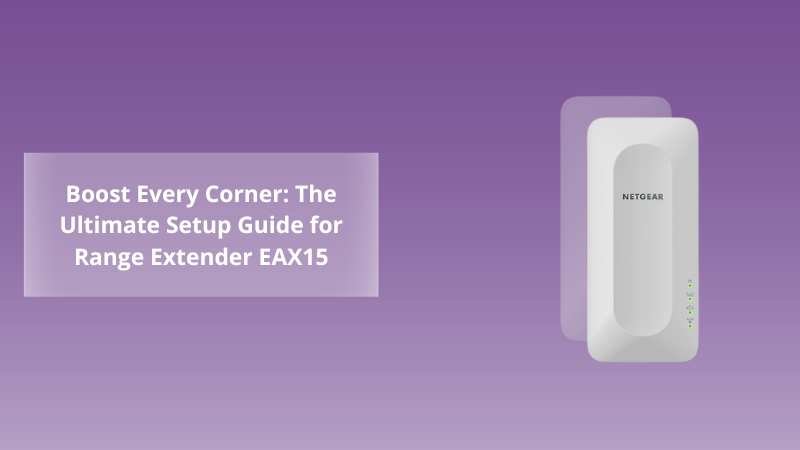
Boost Every Corner: The Ultimate Setup Guide for Range Extender EAX15
Posted by WifiExtSetup on 26th May 2025
Introduction: Why Is Your WiFi Strong in One Room but Weak in Another?
Ever wonder why your phone has five bars of WiFi in the living room but struggles to load Instagram upstairs? Or why does your smart TV buffer just when your show hits the climax? You paid for fast internet, but your signal doesn’t seem to care.
Here’s the thing: Your router can only do so much. Walls, floors, and even microwaves block the signal. That’s where the Range Extender EAX15 steps in—a smart, compact WiFi 6 extender designed to eliminate dead zones and supercharge your home network.
But is it right for your space? How do you set it up without a tech degree? And how can you make sure you’re getting its full potential?
Let’s break it all down, step-by-step.
What is the Range Extender EAX15, and Why Should You Care?
A Compact Powerhouse With WiFi 6 Technology
The NETGEAR EAX15 is a dual-band AX1800 WiFi 6 extender built for homes that crave uninterrupted coverage. It extends your existing router’s reach to cover those stubborn spots—upstairs rooms, garages, basements, or patios—without sacrificing speed.
It’s designed for the way we live now: streaming, video calling, online gaming, and smart home gadgets all demand bandwidth simultaneously.
“In today’s world, WiFi is as essential as electricity—when it’s weak, everything stops working.”
With MU-MIMO and OFDMA support, the EAX15 handles multiple devices at once with better efficiency. It’s like adding more lanes to a traffic-jammed road—less wait, smoother flow.
How to Set Up the Range Extender EAX15: A Quick Start Guide
You don’t need a tech background or a technician. The EAX15 setup is DIY-friendly and takes under 10 minutes.
Step 1: Plug It In
Choose a power outlet halfway between your router and the area with weak WiFi. Plug in the extender and wait for the power LED to light solid green.
Step 2: Connect to the Extender Network
On your smartphone or laptop, open the WiFi settings and connect to NETGEAR_EXT.
Step 3: Launch the Setup Page
Open a browser and go to http://mywifiext.net or try 192.168.1.250 if the page doesn’t load.
Step 4: Follow the Setup Wizard
-
Select your existing WiFi network.
-
Enter your network password.
-
Choose to either mirror your existing SSID or set a unique name for the extended network.
Step 5: Finish and Reconnect Devices
Once setup completes, reconnect your devices to the new or extended WiFi network and enjoy full-strength coverage.
Tip: Prefer a one-click solution? Press the WPS button on your router and then on the extender for instant pairing.
What Makes the EAX15 a Smart Choice for Your Home?
1. Dual-Band AX1800 Speeds for Smoother Streaming
With up to 1.8 Gbps combined speed over 2.4 GHz and 5 GHz, the EAX15 ensures lag-free 4K streaming, faster downloads, and stable video calls.
2. WiFi 6: The Future-Ready Tech
WiFi 6 isn’t just a buzzword—it’s a leap forward. The EAX15 leverages it to optimize performance for modern devices, especially in crowded or multi-device households.
3. Universal Compatibility
Have a non-NETGEAR router? No problem. The EAX15 works with any router brand, giving you flexibility and ease.
4. Seamless Roaming With One Network Name
With Smart Roaming, your device switches between router and extender automatically. Walk from room to room without losing your connection—your phone won’t even notice.
5. Discreet, Compact Design
Unlike bulky extenders, the EAX15 plugs directly into a wall outlet and blends into any home environment, keeping performance high and clutter low.
“This tiny device packs a serious punch—like putting a concert speaker inside a Bluetooth speaker shell.”
Troubleshooting EAX15: Solutions to Common Setup Issues
Even the best devices can have a few hiccups. Here’s how to fix the most common EAX15 setup problems:
Issue 1: Can’t Access Mywifiext.net
-
Double-check you’re connected to NETGEAR_EXT.
-
Try using the direct IP: 192.168.1.250
-
Clear your browser cache or use a different browser.
Issue 2: Weak Signal After Setup
-
Try moving the extender closer to the router.
-
Avoid placing it near metal objects or thick walls.
-
Re-run the setup using the wizard to ensure correct placement.
Issue 3: Devices Not Auto-Switching Between Networks
-
Make sure Smart Roaming is enabled.
-
Use the same SSID and password for the extended network.
Get More From Your EAX15: Performance Optimization Tips
1. Use the Nighthawk App
Manage, update, and monitor your extender using the Nighthawk app. It provides real-time data on connected devices and signal strength.
2. Keep Firmware Updated
NETGEAR regularly pushes performance and security updates. Check the app or the admin dashboard to ensure your firmware is up to date.
3. Place It Smart
Avoid kitchens (microwaves cause interference) and thick concrete walls. The EAX15 performs best in open, central locations.
4. Reboot Weekly
Just like your phone, your extender benefits from a weekly restart to keep performance smooth and fast.
Related Resource to Deepen Your Knowledge
👉 Master Your WiFi: The Complete Guide to Range Extender EAX17 Setup & Performance
If you’re considering another extender or curious how the EAX15 compares to its big brother, the EAX17, this in-depth blog will help you decide.
Conclusion: Is the EAX15 the Missing Piece in Your WiFi Puzzle?
Back to our original question—why is your WiFi patchy in some rooms? The answer lies in the limitations of your router’s range, not your internet plan. And that’s where the NETGEAR EAX15 comes in.
For most homes, this budget-friendly WiFi 6 extender is the perfect solution. It’s easy to set up, compact enough to stay out of the way, and powerful enough to transform your home network.
“WiFi is the highway of your home—make sure there are no speed bumps.”
If you’re ready to eliminate buffering, boost speed, and enjoy seamless connectivity, the EAX15 is your go-to device.
Need Help?
🛠️ Get step-by-step setup support, troubleshooting guides, and expert tips at wifi-extsetup.com. We’ve got your back!
FAQs: Everything You Need to Know About the EAX15
Q1: Is the EAX15 compatible with mesh networks?
No, it’s not part of a mesh system, but it creates a mesh-like experience with Smart Roaming and SSID mirroring.
Q2: Does it work with any internet service provider (ISP)?
Yes. Since it extends your WiFi signal, not your ISP connection, it works with all ISPs and routers.
Q3: Can I use more than one EAX15 in a large home?
Yes, but place them carefully to avoid overlapping signals or interference.
Q4: Will this make my internet faster?
Not exactly. It doesn’t increase your internet speed, but it ensures your devices can access the full speed you’re already paying for—everywhere.
Q5: Can I connect gaming consoles or PCs with Ethernet?
No, the EAX15 does not include a wired Ethernet port. If you need that, check out EAX17 instead.